VmLogin
Setting up VmLogin to work with Mango Proxy
Step 1: Launch VmLogin and create a new profile
Start the VmLogin application on your computer.
In the main interface click “Create New Profile”.
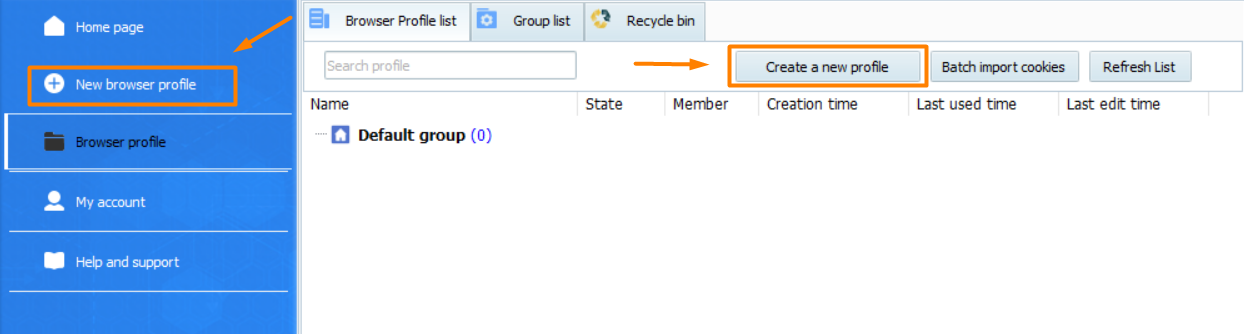
Step 2: Go to the proxy settings
In the profile creation window find and open the “Settings Proxy Server” (or simply “Proxy”) section.
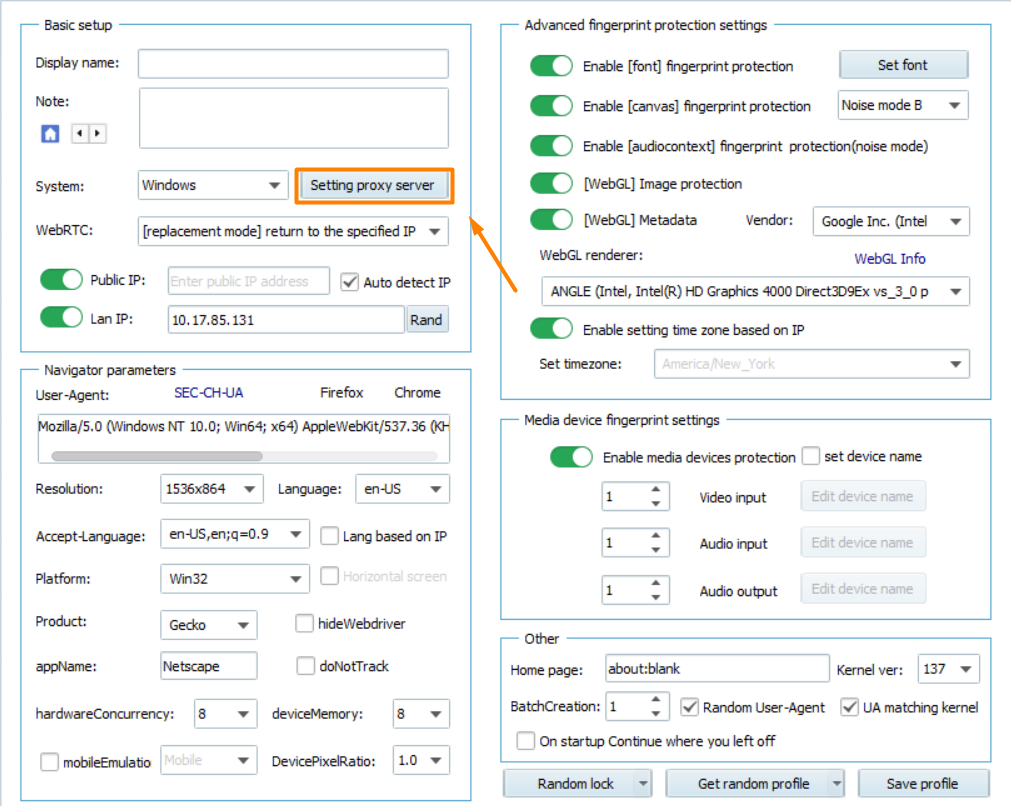
In the Proxy Settings menu enable the proxy by switching on “Enable proxy server”.
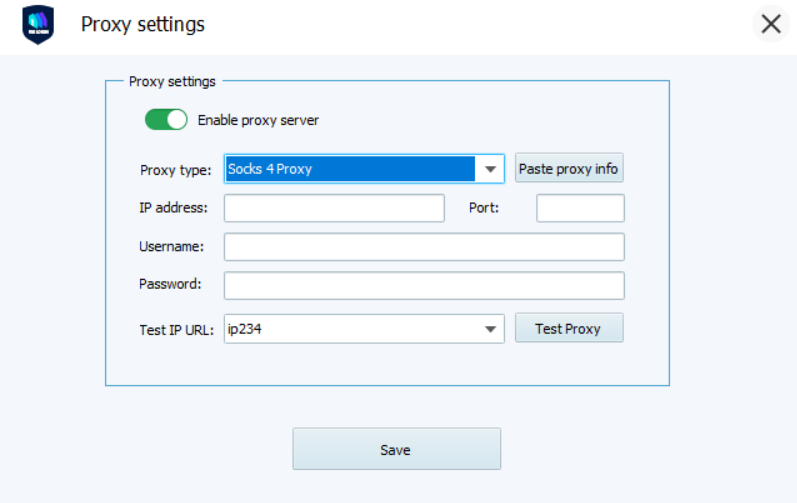
Step 3: Enter your Mango Proxy data
- In the Proxy Type field select the protocol you configured in Mango Proxy (SOCKS5, HTTP or HTTPS).
- In the Host field enter the proxy server address (for example,
p2.mangoproxy.com). - In the Port field enter the port (for example,
2333). - In the Username field enter the login received in Mango Proxy.
- In the Password field enter the password from Mango Proxy.
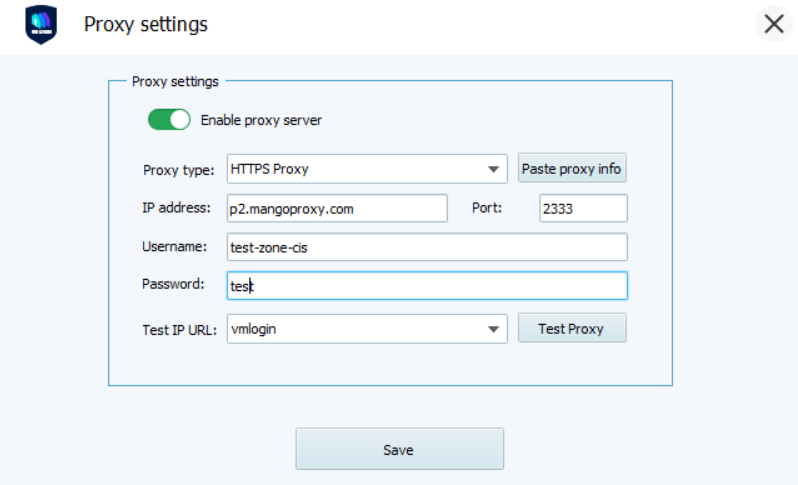
Step 4: Test the connection and save settings
Click “Check Proxy” or “Test Connection” to check the connection.
After a successful test click “OK” or “Save” to save the profile settings.
Your new profile will appear in the main interface and is ready to use.