Antik Browser
Configuring Mango Proxy in Antik Browser
This guide helps you connect proxies from Mango Proxy in Antik Browser.
Step 1. Creating a new profile
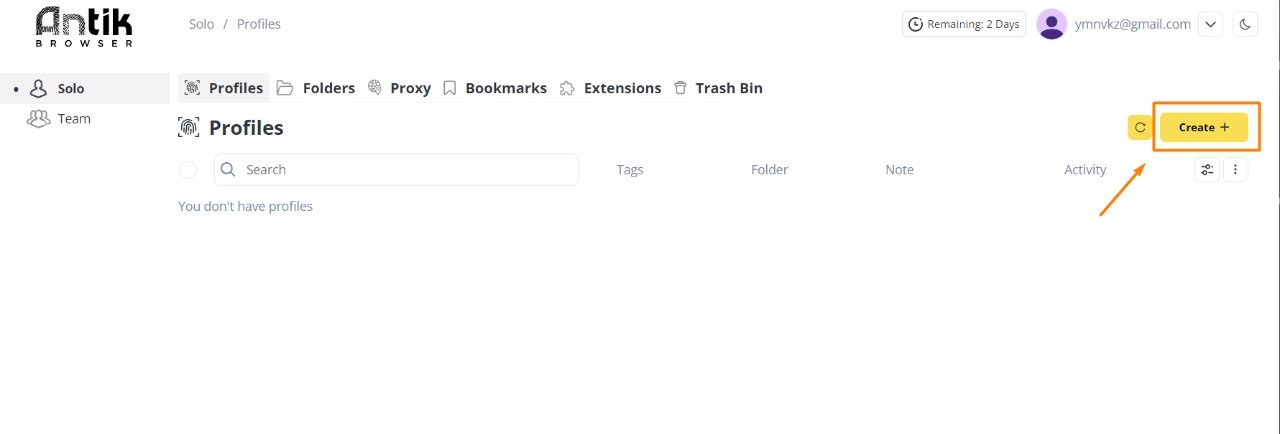
- In the main menu go to the Profiles tab.
- Click the Create + button in the top right corner.
Step 2. Filling in basic profile parameters
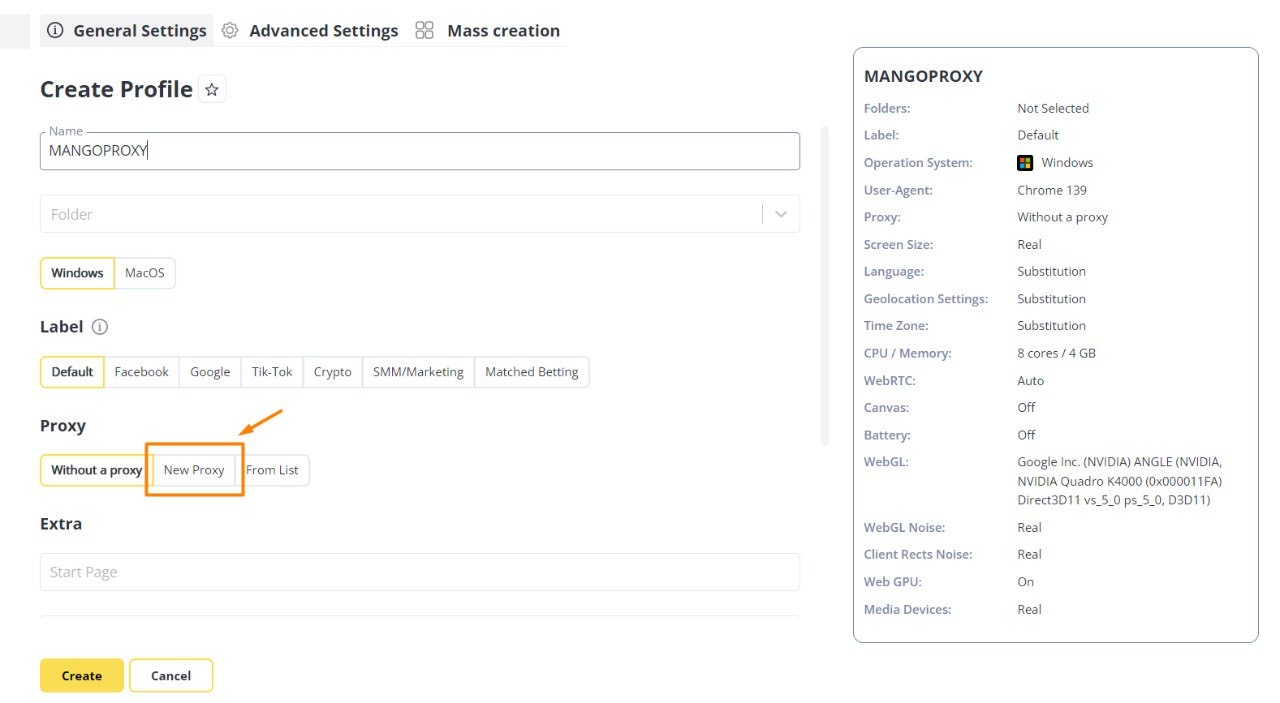
- In the Name field, specify the profile name (for example,
MANGOPROXY). - Choose the operating system — Windows or macOS.
- In the Proxy block select New Proxy.
Step 3. Entering proxy data from Mango Proxy
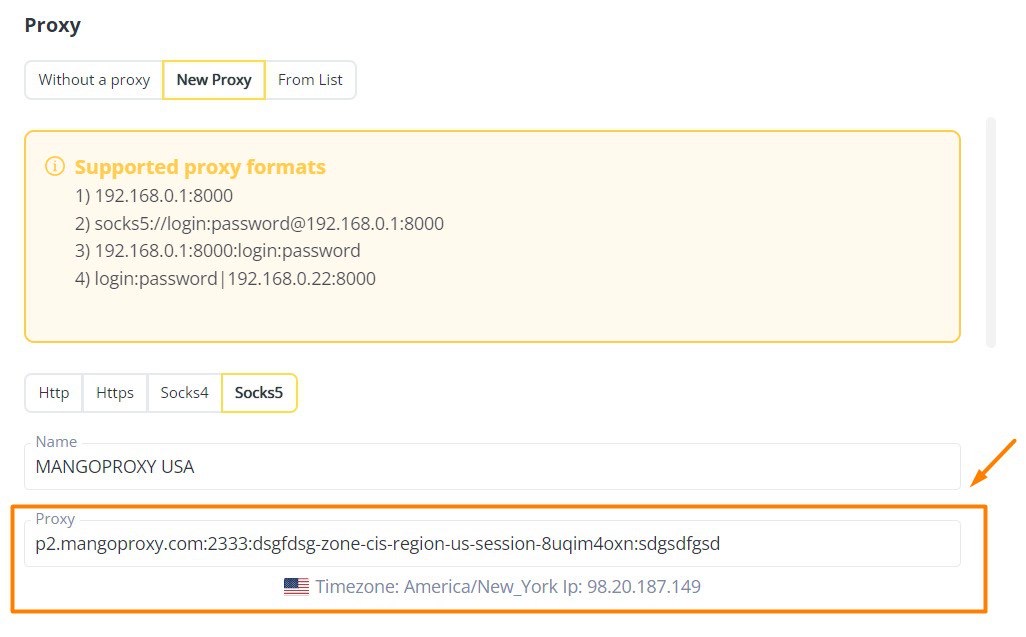
- In the opened window select the Socks5 tab (or other desired protocol).
- In the Proxy field enter the data obtained in the Mango Proxy dashboard:
login:password@host:port
Example:
dsgfdsg-zone-cis-region-us-session-jeply2gcd-sessTime-15:sdgsdfgsd@p2.mangoproxy.com:2333
- Make sure the system detected the correct IP address and time zone.
Step 4. Saving the profile
- Click Create.
- The new profile with the connected proxy will appear in the list of profiles.
- Start it to work with the Mango Proxy IP.
Useful links
- How to obtain proxy credentials in Mango Proxy
- Overview of supported protocols
- Recommendations for choosing geo for accounts
💡 Tip: If you often work with multiple proxy configurations, save them in the From list section to quickly connect them when creating new profiles.