Linken Sphere
Connecting a proxy in Linken Sphere
This instruction tells you how to add and configure a proxy in the Linken Sphere browser using data from Mango Proxy.
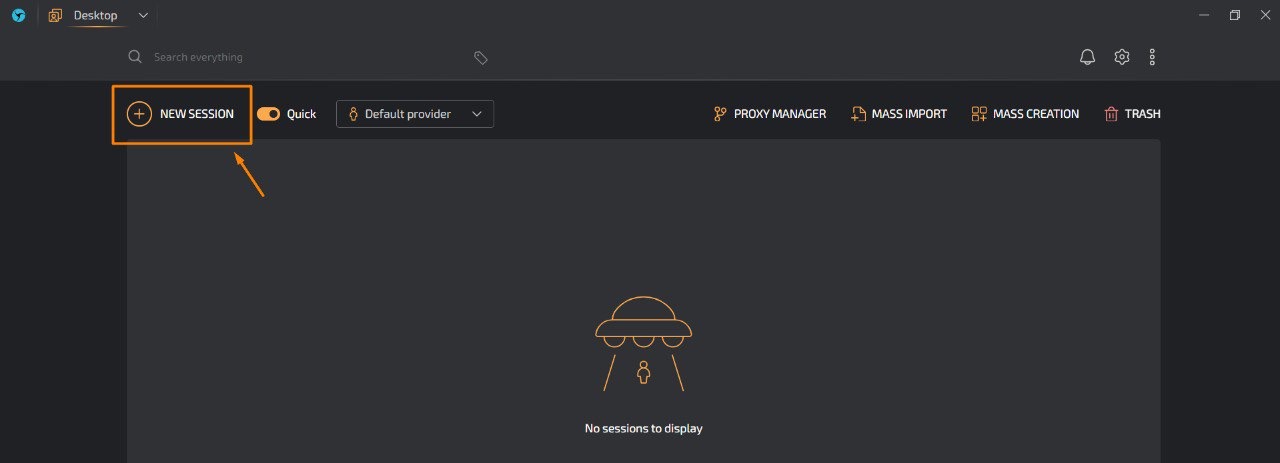
1. Create a new session
- On the main screen, click the
+ NEW SESSIONbutton in the upper left corner.
2. Go to proxy settings
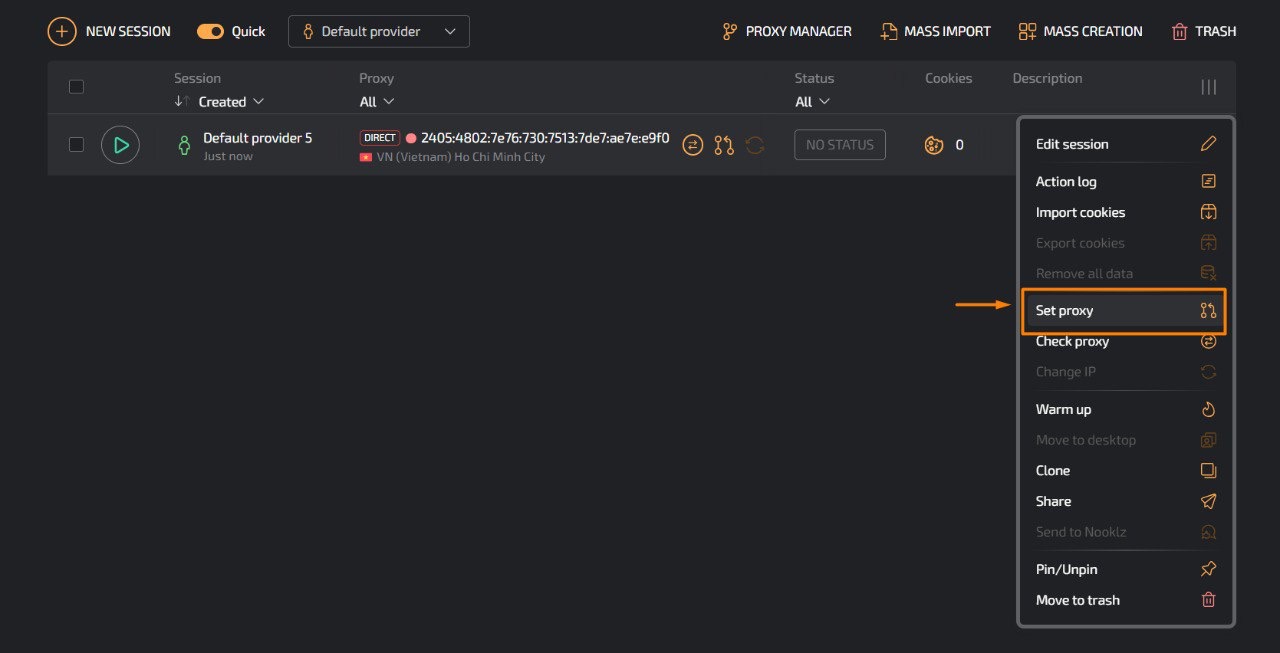
- Find the desired session in the list.
- Click the icon with three dots (additional actions).
- In the drop‑down menu, select
Set proxy.
3. Add a new proxy
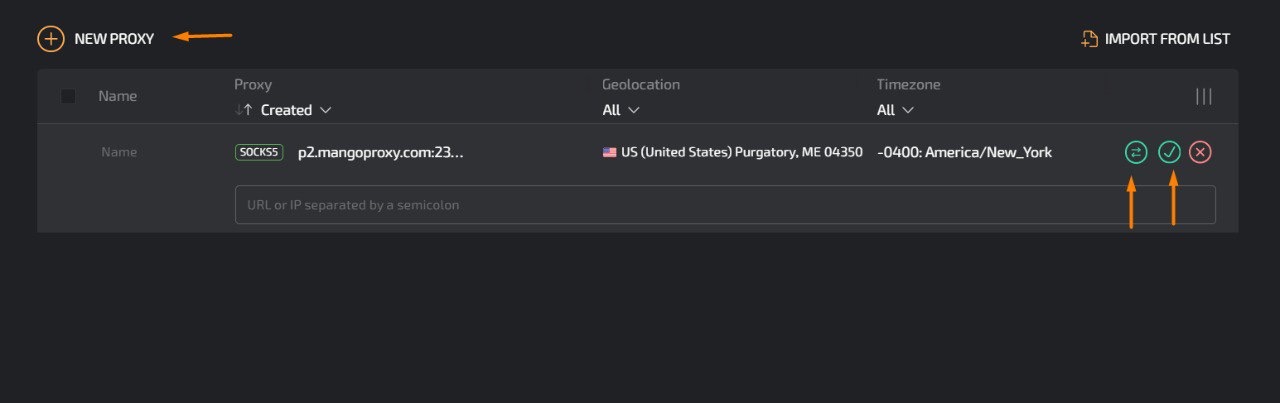
- In the window that opens, click
+ NEW PROXY. - Enter the proxy data in one of the supported formats:
login:password@host:port
or for SOCKS5:
socks5://login:password@host:port
- Select the required proxy type (for example, SOCKS5).
- Click the checkmark to save.
4. Apply the proxy
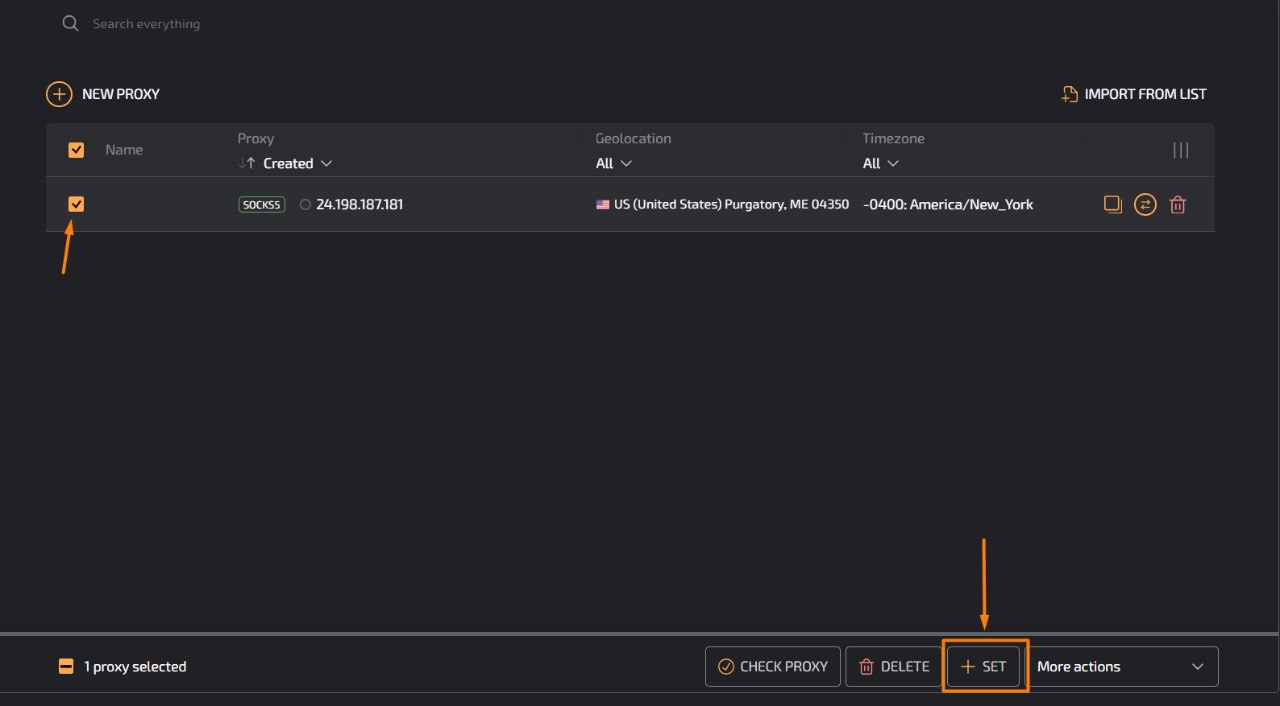
- Check the box next to the created proxy.
- Click
+ APPLYat the bottom of the window. - The proxy will be applied to your session.
Notes
- Make sure you are using the correct data from Mango Proxy.
- If the proxy does not connect, check the login, password, host and port.
- Using SOCKS5 is recommended for greater anonymity.