ClonBrowser
Connecting Mango Proxy in ClonBrowser
ClonBrowser is a multi‑account browser designed for safe work with a large number of accounts.
This guide shows how to connect Mango Proxy when creating a new profile.
1. Create a new profile
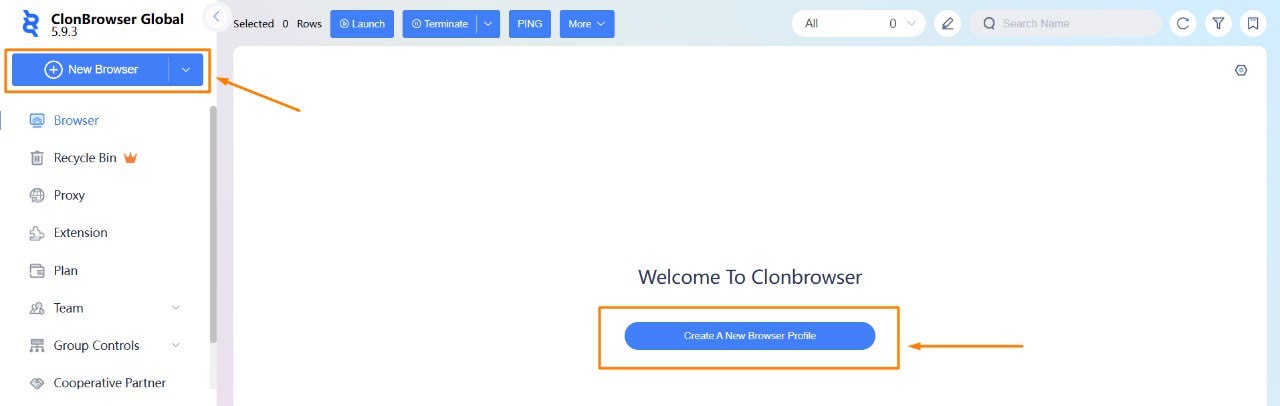
- Launch ClonBrowser and log in.
- On the home page click “Create new browser profile”.
2. Fill in the basic parameters
- In the Profile name field enter something like
MANGOPROXY. - If needed select a group or leave it empty.
- Set:
- Fingerprint mode — choose
Smart. - Operating system — choose
Windows. - Kernel — choose
ClonBrowserorFlonBrowser (Beta).
- Fingerprint mode — choose
- Go to the Proxy settings tab.
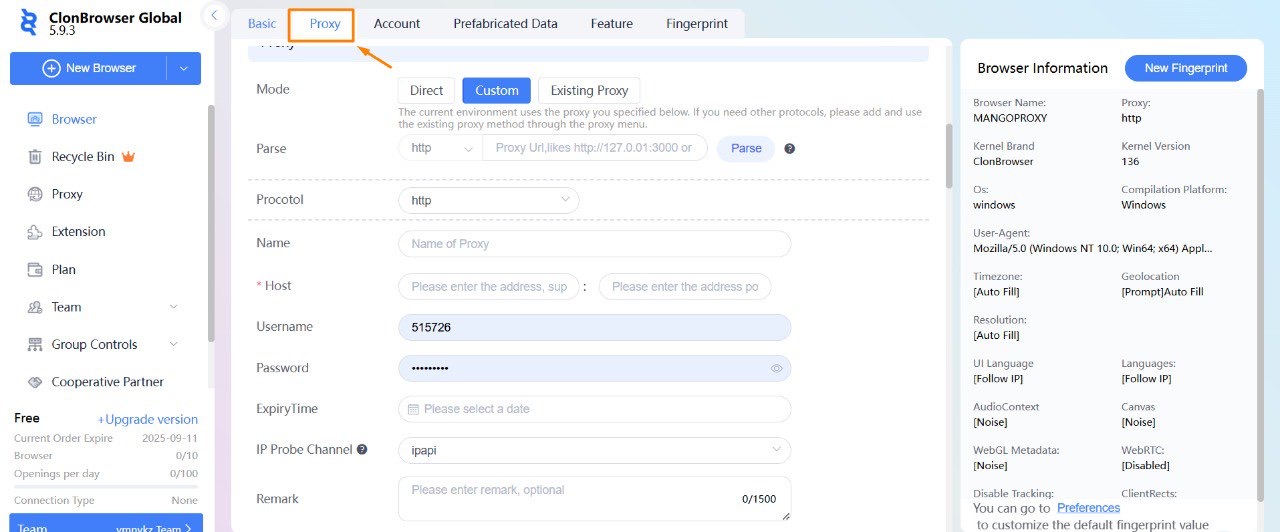
3. Configure the proxy
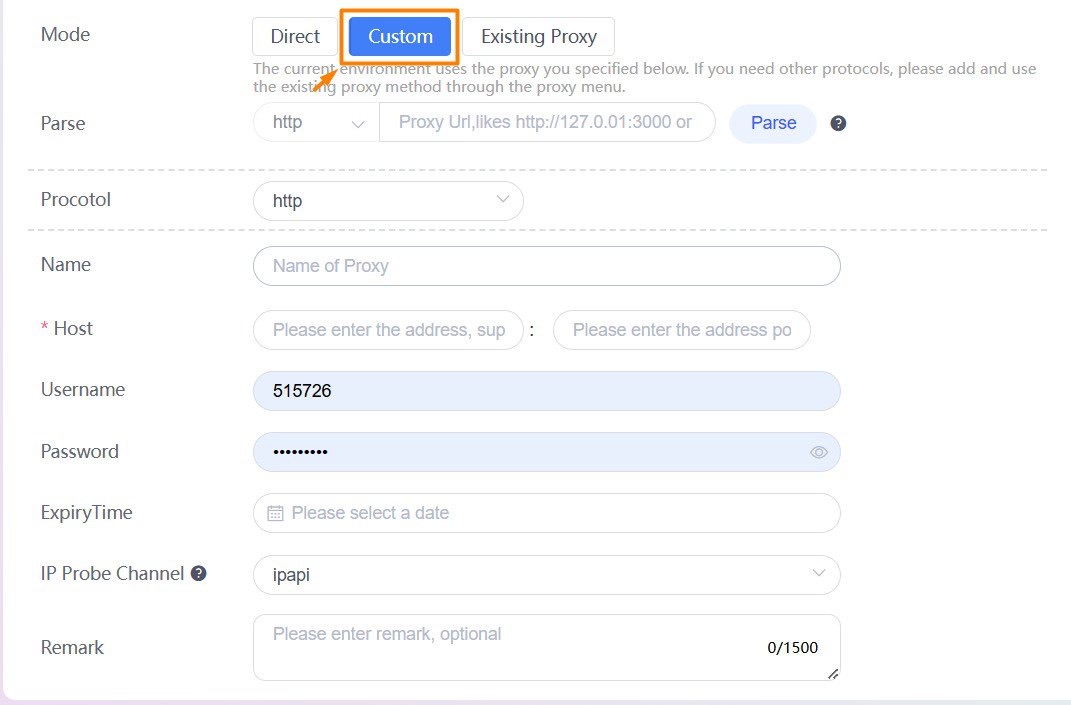
- In the Proxy mode section select Custom.
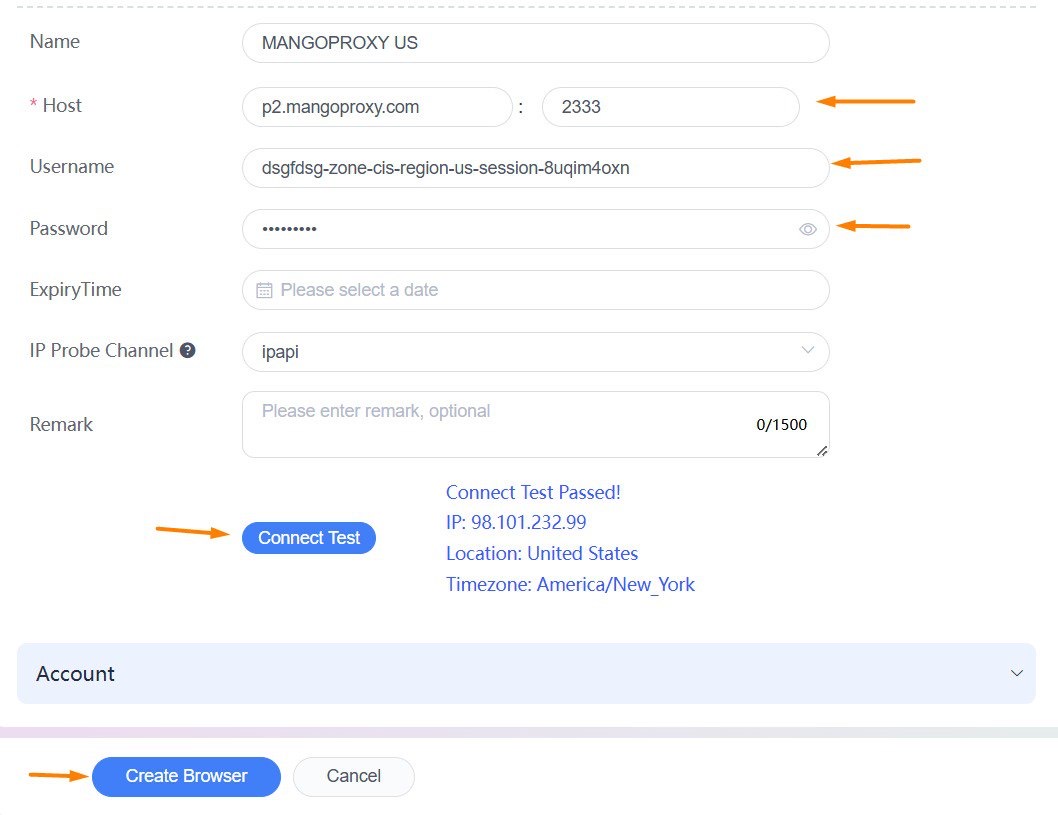
- Fill in the fields:
- Host —
p2.mangoproxy.com. - Port —
2333. - Username — your credentials from the Mango Proxy dashboard
(see How to get proxy credentials). - Password — your proxy password.
- Host —
- It is recommended to set the IP probing channel to
ipapi.
4. Check the connection
-
Click “Test connection”.
-
Upon a successful test you will see a message similar to:
Connect test passed!
IP: 38.13.153.57
Location: United States
Timezone: America/New_York
5. Save the profile
- After a successful test click “Create profile”.
- Your profile with the proxy will appear in the list of browsers, and you can use it for your work.